How to Delete Elements from an SVG File Online
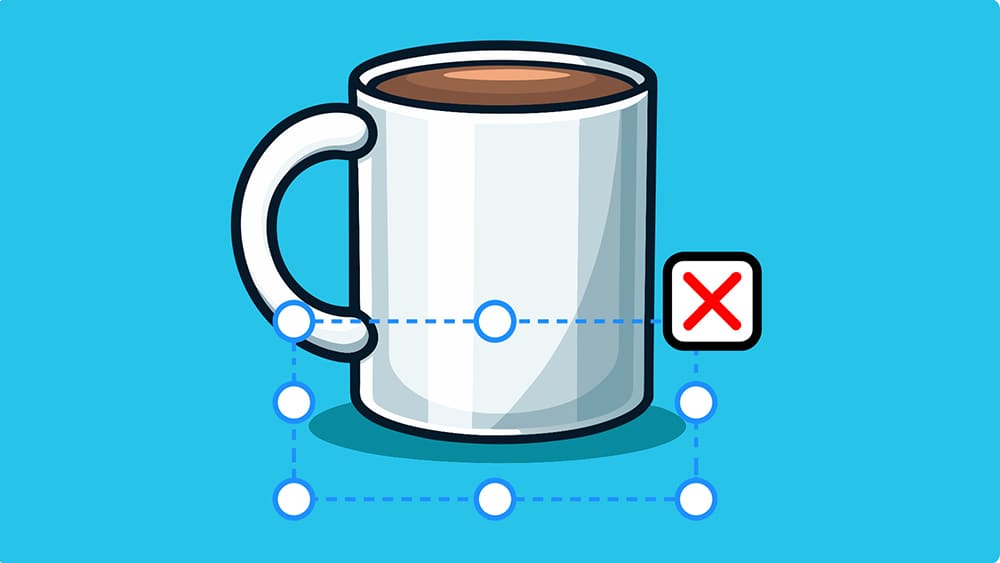
Editing an SVG sounds innocent, until you try to delete one tiny shape.
Suddenly the entire icon explodes like you pulled the wrong wire in a bomb 🤯
And if you’ve ever deleted one path and watched half your SVG disappear, then welcome... you are among friends.
SVG files are amazing, but they can be annoyingly sensitive.
One wrong click in Illustrator and the whole design collapses into chaos.
And honestly, most people don’t want to learn vector surgery courses on YouTube.
They just want to delete a random line, extra shape or a weird random leftover element someone added in 2012.
So let me show you how to delete SVG elements the easy way:
How to Delete SVG Elements with 1 Click 👇🏼
First open svg.design/editor right in your browser.
It loads fast and doesn’t ask you to install anything.
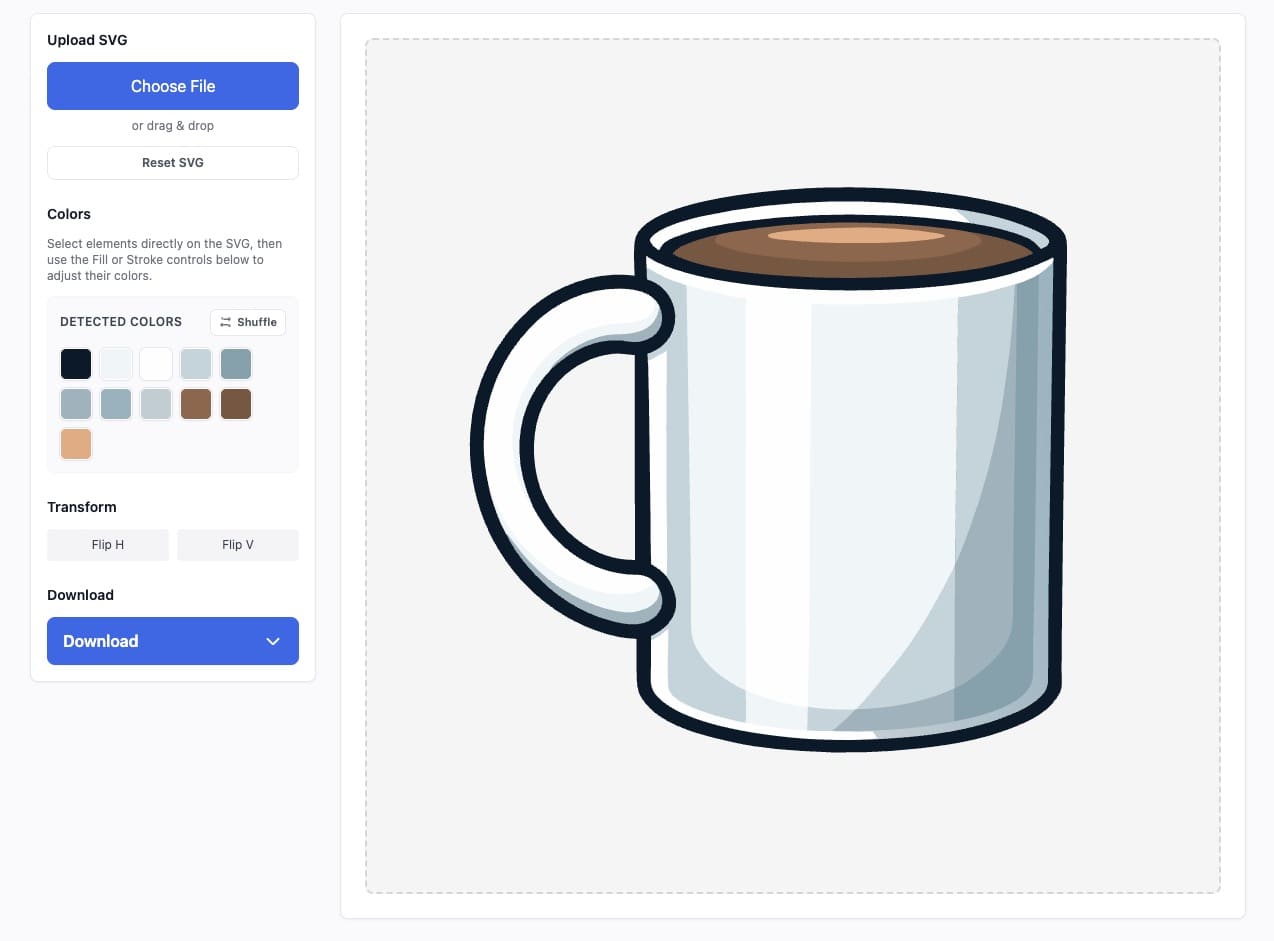
Then upload your SVG file, and you’ll see the entire vector appear clearly on the canvas.
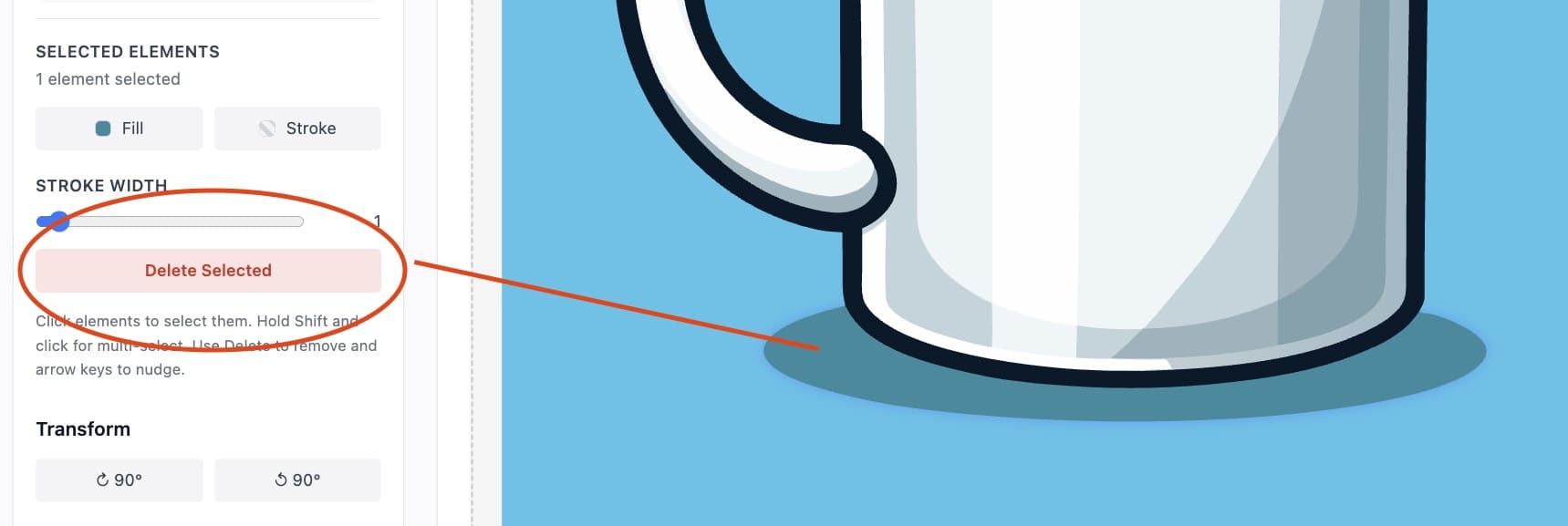 After that simply click on any element you wish to delete.
The editor highlights that exact piece so you know you’re targeting the right shape.
Then press the Delete key or hit the Delete Button.
The element disappears instantly.
No layers to dig through and no confusing groups, but if you need you can also edit the SVG code.
If you want to remove multiple things from SVG, just hold shift and select multiple SVG objects.
Then delete them all in one clean go or just remove portion of an SVG image.
Everything is simple, visual and very beginner friendly.
Why People Delete Elements in an SVG?
Fix messy AI generated vectors.
Removing extra shapes instantly makes generated illustrations look clean and more usable.
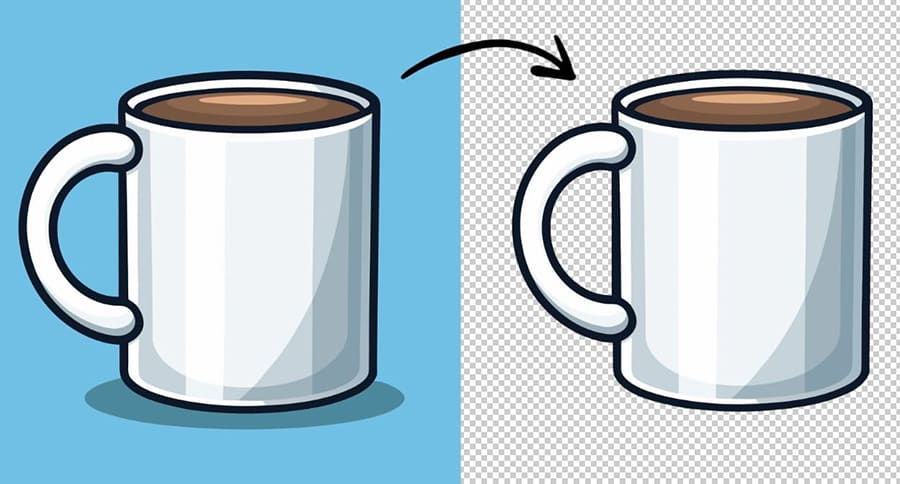
 Remove backgrounds.
Deleting background layers makes your SVG as transparent and ready for websites and UI projects.
Simplify complex graphics.
Cutting out unnecessary details helps the design load faster and look sharper.
Fix free SVG packs.
Removing placeholder shapes or weird decorations keeps everything tidy.
Prepare for animation.
Keeping only the essential parts makes SVG animations easier to build.
Clean up Figma or Illustrator exports.
Taking out extra layers improves file clarity and reduces confusion.
Fix auto-traced Illustrator images.
Removing leftover shapes quickly restores a clean vector structure.
Create minimal icons.
Removing decorative details helps achieve a simple, modern look.
Optimize for print.
Deleting the clutter makes the final file more suitable for print.
Why svg.design Is Easier Than Illustrator ❤️
Illustrator is powerful, but it’s also very dramatic and over engineered for beginners to use.
Deleting one path feels like you need to complete twenty extra steps.
svg.design does the opposite, because it lets you delete elements instantly without digging into layers or hidden structures.
You just click the thing and then you delete an object or recolor the entire SVG.
It feels like the way SVG editing should have always worked.
 Why It’s Faster Than Hiring Someone ✅
Hiring a designer to delete one tiny shape feels unnecessary.
Waiting for a simple fix is even worse.
And using huge design software for a 2-second delete button is overkill.
svg.design removes the friction.
It works online and it’s free.
You can fix any SVG template before your email loads.
Goodbye, Random SVG Shapes... 👋
Funny how one unwanted object in an SVG can ruin your whole design.
But thankfully, deleting elements doesn’t need to feel like a surgery.
With svg.design you click the piece you don’t want.
You delete it instantly and your SVG finally looks clean again.
No stress and just quick edits that actually make sense.
Now go enjoy that newly decluttered SVG.

About the Author
I'm a vector artist and 3D designer and the founder of SVG.design. I love creating beautiful visuals and sharing what I've learned about design, productivity, and creativity with fellow artists and makers.