How to Print Check SVG Files
So you have an vector file (svg or pdf) and you need to print, but there's one issue...
most people have no idea whether their vector file is actually “print-ready”.
The problem is that it the content looks perfect on your screen…
…but printers don’t print screens.
They print technical files.
And that’s where all the mistakes happen.
So in this guide, I’ll walk you through:
- Why vector files still need to be checked or optimized.
- What can go wrong (and how to avoid expensive errors)
- How a simple online checker can verify everything for you
- The exact things printers look for in an SVG
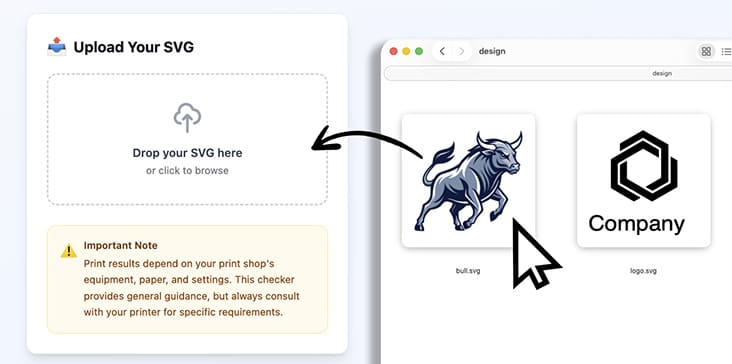 Let’s make this easy.
Why Your SVG Needs a “Print Check” 🖨️
Vectors files are great, because they scale forever and they’re sharp.
So it’s common to think:
“It’s a vector… why would anything be wrong?”
Here’s the truth:
Printers are picky and SVGs, PDFs or AI files can hide issues you don’t notice until the print machine fails.
And once something goes wrong?
- The print looks blurry
- Colors look off
- Text disappears
- Thin lines vanish
- The shop rejects your file
- Or worse… you pay for something that prints wrong
A 3-second check could avoid all that.
The Most Common Vector Print Problems 📋
Let’s keep this super simple.
These are the issues real print shops worry about:
1. Wrong size
Your print file might be 512px wide, not 210×297 mm (A4) or whatever you expect.
On screen it looks fine, but in print it becomes tiny.
2. No bleed
If your artwork goes all the way to the edge, printers need a bit of extra artwork outside the trim area.
No bleed = white edges.
Printers hate white edges.
3. Hidden raster images
Some vectors secretly contain PNG or JPEG images.
That means:
- Blurry printing
- Pixelation
- “Why is my vector file not sharp?”
4. Live text
Printers want outlined text, because live text can:
- Cause missing fonts
- Reflow differently
- Print incorrectly
Outlining (removing the font data) on text avoids surprises, because it converts texts into shapes.
5. Lines too thin to print
That hairline stroke you barely see?
On a printer, it may disappear completely.
6. Overly complex paths
Some auto vector traced or AI generated vector art contains thousands of points.
Huge, messy vectors can:
- Slow down RIP machines (Raster Image Processor)
- Fail to print
- Cause weird artifacts
 How Can I Check Any of This? 🤔
Great question.
Most regular users aren’t graphic designers or prepress experts.
You shouldn’t need to:
- Install Illustrator
- Learn print specs
- Understand path geometry
- Know what a “RIP” machine is
That’s why an online preflight tool exists.
It automatically checks your vector paths, color changes and tells you exactly what’s wrong.
Think of it like:
- Grammarly → for typos
- Lighthouse → for websites
- Preflight → for print files
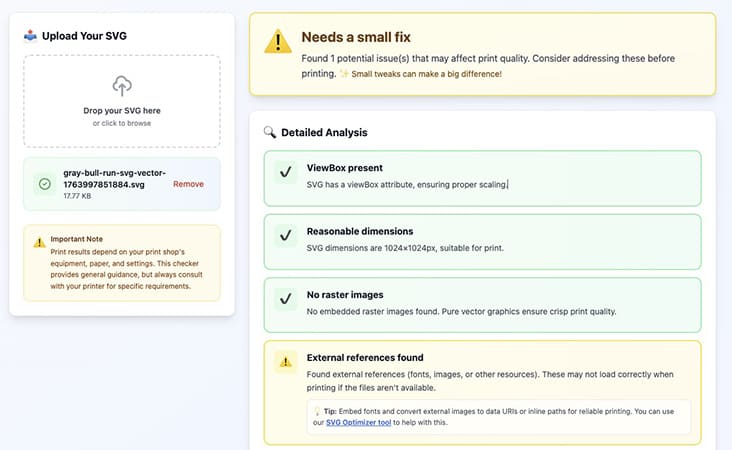
You upload your SVG.
It scans it and says:
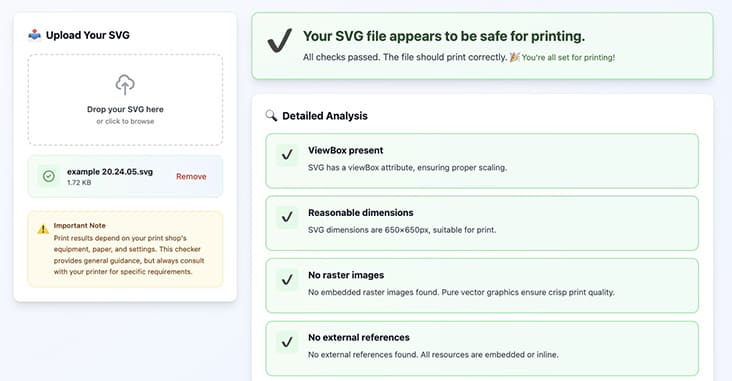
- ✔️ Safe to print
- ⚠️ Needs a small fix
- ❌ Do NOT print this, here’s why
All in plain English.
 What a Print Checker Actually Does ✅
Here are the simple checks running behind the scenes:
✔️ Page size
Does your SVG match the real print size?
✔️ Bleed
Is your artwork extending beyond the trim area?
✔️ Hidden PNG/JPGs
Is everything truly vector?
✔️ Live text
Do you need to convert your fonts to outlines?
✔️ Thin lines
Will any strokes disappear during printing?
✔️ Tiny objects
Will micro-details vanish?
✔️ Complexity
Is your file too heavy for a print machine?
These are the same things a print shop checks…
but without you waiting for them to reply.
Keep Calm and Preflight Your SVG 👇🏼
Preflight” is a classic print-industry term that means checking your file for problems before printing.
Most people think SVGs always print perfectly...
Your file can look great on screen and still fail on a real printer.
That’s why a quick online check or SVG edit saves you a lot of headaches.
You just upload your SVG and the tool instantly tells you if it’s safe to print.
No design skills or print knowledge needed.
You get clear passes warnings and fixes in seconds.
It’s fast simple and made for everyday creators.
NB: results depend on the accuracy of your file and your chosen print shop’s actual requirements.

About the Author
I'm a vector artist and 3D designer and the founder of SVG.design. I love creating beautiful visuals and sharing what I've learned about design, productivity, and creativity with fellow artists and makers.