How to Create an SVG Design from Shapes and Presets
Customize ten multi-element design starters and use the expanded shape library to build your own composition.
In this guide 6 sections
To start an SVG design without a blank canvas, open Shapes → Design starters in the SVG editor. Choose a preview to insert a composition made of editable shapes and text, then ungroup it to make it your own.
The same Shapes tab includes 36 shape and line choices. This guide uses a starter for the layout and individual shapes for the finishing details.
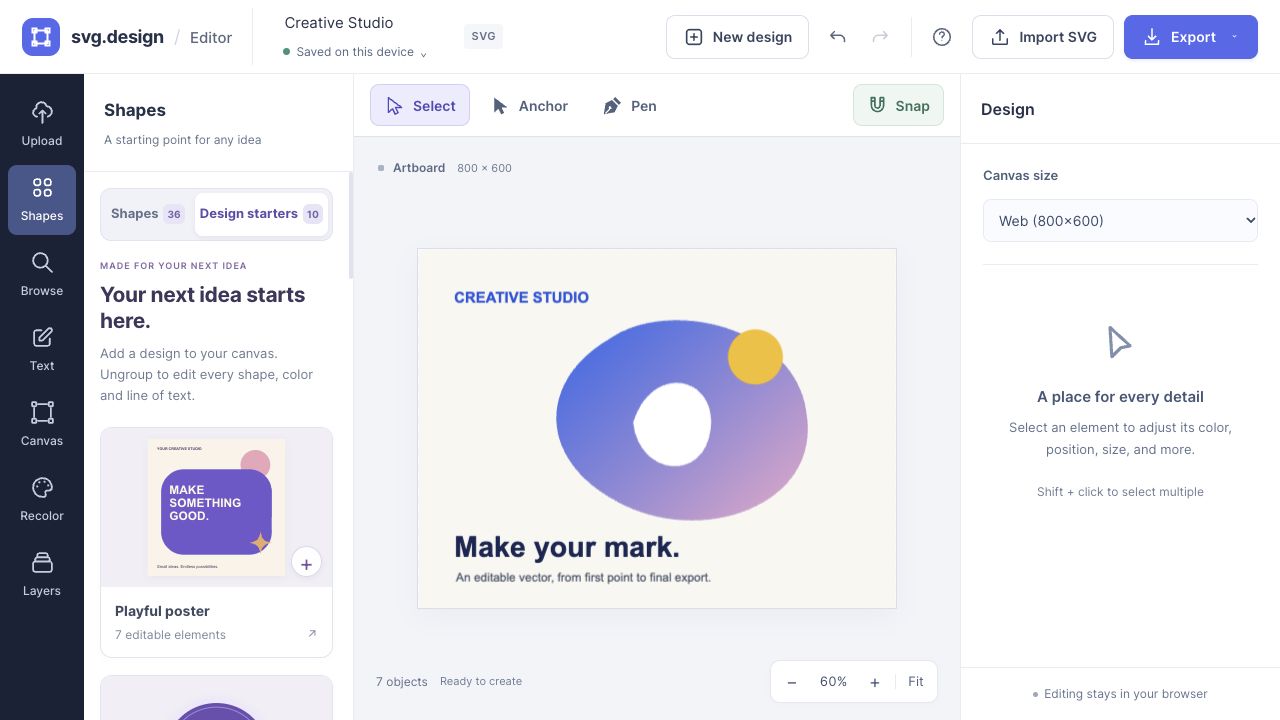
Choose a design starter for the job
There are ten starters, each built from multiple editable elements rather than a flattened picture:
- Playful poster: a bold typographic composition for a short message.
- Studio badge: a compact identity or emblem starting point.
- Product spotlight: a product-focused layout with supporting accents.
- Big announcement: a large headline composition.
- Quote card: a layout for a short quotation and credit.
- Botanical mark: an arrangement of organic shapes and type.
- Abstract collage: overlapping geometric forms, including a gradient.
- Sale sticker: a promotional label composition.
- Landscape scene: a layered vector illustration.
- Idea flow: a multi-part diagram starting point.
Each card shows its artwork and editable element count. Choose the layout closest to your intended structure, then adjust the content instead of treating the preview as a finished design.
Make a customized poster
- Start fresh if needed. Use New design, or continue on your current canvas. Adding a starter preserves existing artwork.
- Choose an artboard size. Use Canvas size in the right panel. For example, choose Square, Portrait, or a custom width and height before inserting the composition.
- Open Shapes. Scroll to Design starters and choose Playful poster.
- Position the group. The starter fits within the current artboard; it does not automatically resize the artboard. Move or scale the group if you want a different placement.
- Ungroup it. Click Ungroup & edit elements to select each component.
- Replace the message. Select a text object and use Text content in the right panel, or double-click it to type. Set its font, size, weight, and alignment under Typography.
- Apply your colors. Change individual fills or use the Recolor tab to replace matching solid colors across the composition.
- Group the finished layout. Select the relevant layers and choose Group selected layers.
Keep headlines short enough to fit their area, and check line breaks after editing. Text remains text in the SVG; font availability in another application can change its appearance. The editor does not currently outline text.
Add shapes and accents
At the top of Shapes, use Search shapes or filter by Essentials, Geometry, Organic, Accents, or Lines. Choose Filled or Outlined before inserting a shape.
- Try an arch, pentagon, semicircle, or slanted parallelogram for a geometric layout.
- Use a leaf, flower, blob, pebble, or cloud for an organic composition.
- Add a sparkle, sunburst, lightning bolt, ribbon, speech bubble, arrow, or check for emphasis.
- Use a line for a divider or simple connector.
Resize and rotate the new object with Select. For a custom silhouette, use Anchor editing. You can also draw a path with Pen.
Adjust backgrounds and alignment
In many starters, the colored background is an editable rectangle inside the group. Select that layer to change its fill or add a gradient. This is separate from the artboard background set in Canvas.
Transparent badge and sticker compositions leave space around their shapes. To place a design consistently, use Snap and the artboard alignment controls.
Save an editable version and an image
Check for Saved on this device, then export SVG for the vector master. Export PNG for a pixel image with transparency when the design has no opaque background layer. Export JPG for an opaque image.
Local drafts can help you resume later in the same browser. They do not travel with you to another device, so download the SVG before relying on it for a future project. See draft recovery and storage limits.
Questions about design starters
Will adding a starter replace my current design?
No. It inserts a grouped composition alongside your existing work. Use New design first if you want a separate blank project.
Can I edit every word and color?
The starters use editable text and vector shapes. Ungroup the composition, select the relevant object, and change its text or fill.
How is this different from the shapes generator?
The editor’s Shapes tab adds components directly to a composition. The separate shapes generator provides controls for generating an individual shape before importing it.
Make it yours.
Keep this guide open and give it a try.