How to Group and Ungroup SVG Elements
Group selected layers, ungroup imported artwork, and understand how groups differ from merged or joined paths.
In this guide 6 sections
To group SVG elements, select two or more objects in the SVG editor and click Group selected layers. To edit one part of an imported illustration, select the group and click Ungroup & edit elements. Grouping keeps objects together while preserving their separate shapes.
This guide covers selection, nested groups, shortcuts, and the difference between grouping objects and joining paths.
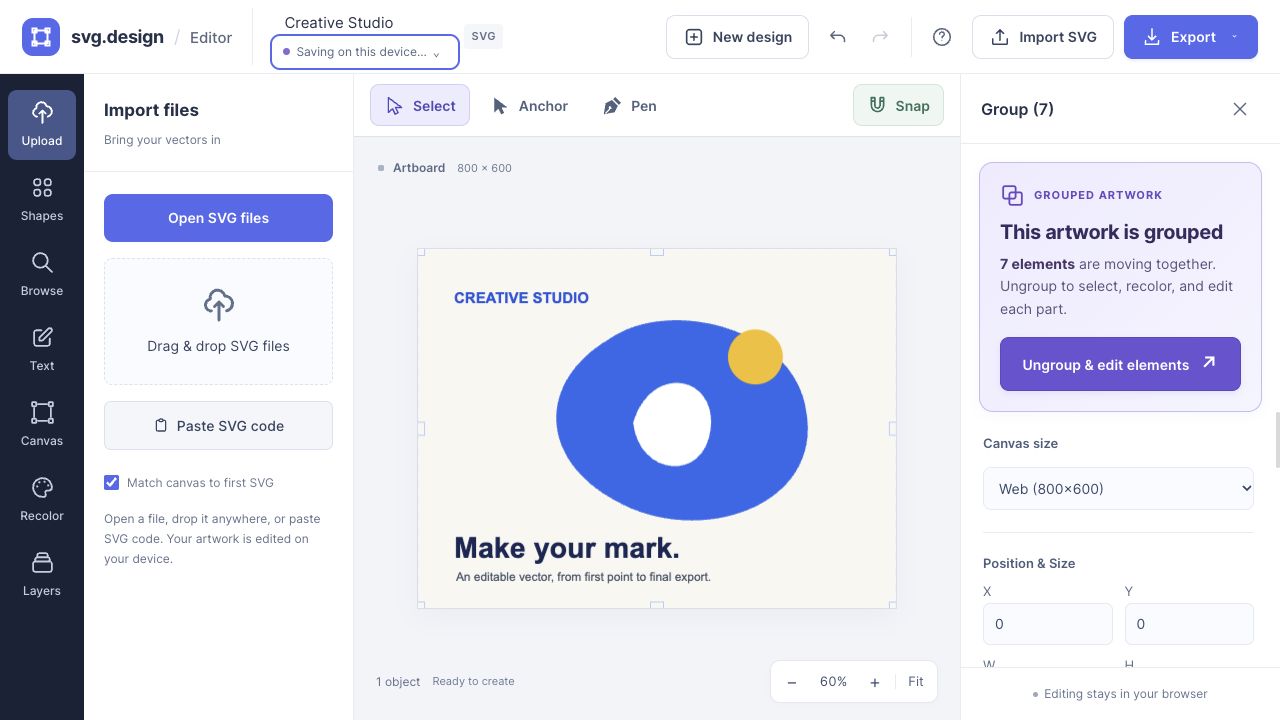
Group several layers step by step
- Choose Select in the toolbar, or press V.
- Hold Shift and click each object you want to include. Alternatively, open Layers and use its selection checkboxes. Choose Select all layers if you want the entire composition.
- Once several objects are selected, use the prominent Group selected layers action in Layers or the selection notice.
- Move, scale, or rotate the new group to keep its parts together.
The keyboard shortcut is Ctrl + G on Windows/Linux or Cmd + G on Mac while working on the canvas. If you are typing in a text object or field, exit text editing first.
For example, group a badge’s background circle, title, and decorative sparkle after positioning them. You can then move the badge as a single component without rebuilding its layout.
Ungroup an imported SVG
Many imported SVGs arrive as a group. Selecting the artwork shows This artwork is grouped and the Ungroup & edit elements button. Use it to expose individual paths, shapes, and text.
- Select the grouped artwork on the canvas or in Layers.
- Click Ungroup & edit elements, or use Ctrl/Cmd + Shift + G.
- Select the particular part you want to change.
- Adjust its fill, stroke, position, or text. For a path, enter Anchor mode to edit nodes.
Some SVGs contain groups inside groups. An ungroup operation removes one level; repeat it on a remaining group until you can select the desired object. Ungroup only as far as you need, so useful components stay organized.
Change one object or the whole palette
Ungrouping is helpful when a single shape needs a new fill or a gradient. Choose that individual object before using its inspector controls.
For a color used across the whole illustration, you may not need to ungroup. The Recolor tab scans solid fills and strokes inside groups and replaces matching colors together. It does not edit gradient stops.
Customize a grouped design starter
Design starters are inserted as groups so a complete poster, badge, or diagram is easy to move. Ungroup to edit its text, colors, and individual shapes, then select the finished parts and group them again.
A starter’s background may be a rectangle layer. If it gets in the way of selecting a smaller object, use Layers to choose the object you need.
Grouping, merging files, and joining paths
| Operation | Result |
|---|---|
| Group elements | Separate objects move as one component; ungroup to edit them individually |
| Merge SVG files onto one canvas | Artwork from several files shares one document; objects may still be separate or grouped |
| Boolean union or join paths | A geometry operation combines outlines; the editor does not currently provide a Boolean union command |
Grouping overlapping circles does not remove their overlap or turn them into one continuous silhouette. See merging SVG files when your goal is a combined exported document.
Troubleshoot groups
Why is Group selected layers disabled?
Select at least two objects. A single imported group counts as one selected object until you ungroup it.
Why can’t I change a gradient or edit nodes?
Those controls need one supported object, rather than a group or multiple selection. Ungroup, select the path or shape, and try again.
Will ungrouping flatten the artwork?
Ungrouping exposes separate objects; it does not rasterize them into a bitmap. Export SVG to retain vector artwork.
Can I undo a group or ungroup?
Yes. Use Undo during the current editing session. Save an exported SVG at important stages if you need a separate lasting version.
Make it yours.
Keep this guide open and give it a try.