How to Edit SVG Nodes and Bézier Handles
Reshape individual paths, smooth corners, and adjust the selected anchor’s incoming and outgoing handles.
In this guide 6 sections
To reshape an SVG without editing its code, select an individual path in the SVG editor and choose Anchor in the toolbar. You can move nodes, add or delete points, and turn corners into curves with Bézier handles. The shortcut is A or N.
This guide explains how to smooth a corner, keep both curve handles attached to the intended point, and correct common selection problems.
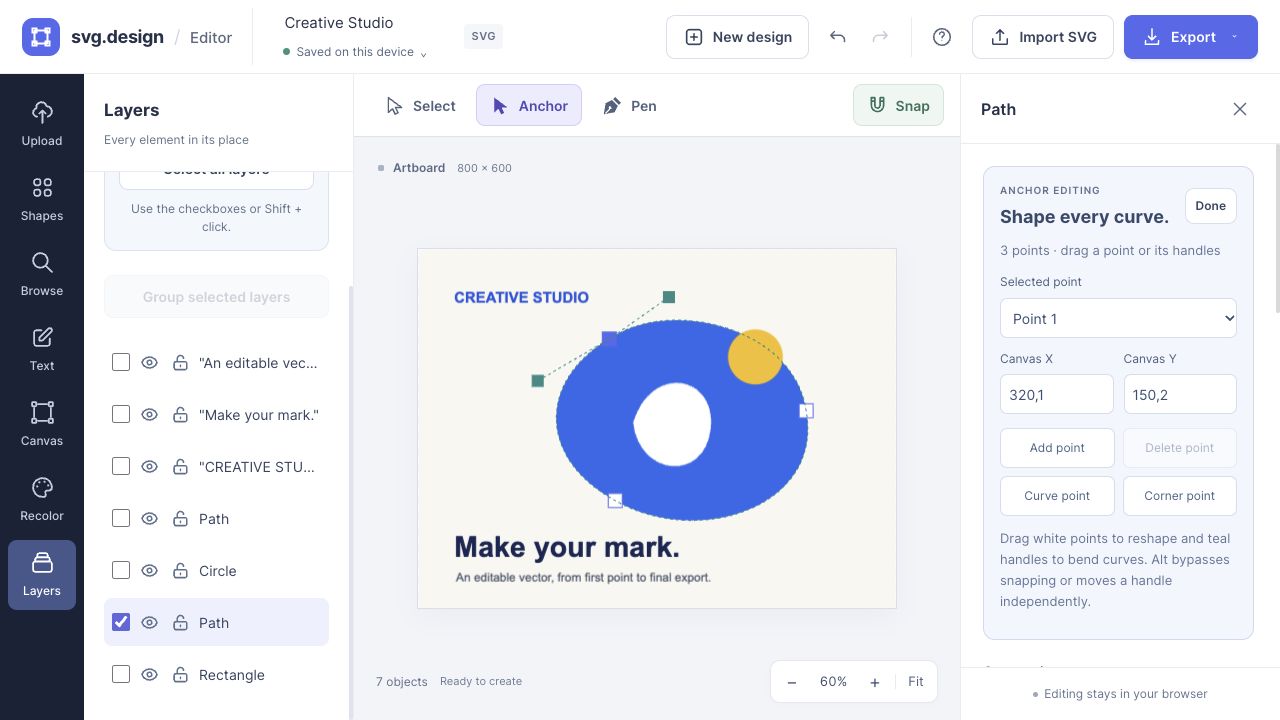
Open an SVG for node editing
- Import your SVG, drop it onto the canvas, or use Paste SVG code.
- Select the artwork. If the editor says This artwork is grouped, choose Ungroup & edit elements. Nested artwork may need more than one ungroup operation.
- Select the individual path or basic shape you want to reshape.
- Click Anchor, the filled pointer between Select and Pen. You can also press A or N, or double-click an editable path.
Basic shapes such as rectangles, circles, ellipses, triangles, polygons, and lines become paths when you enter Anchor mode. Text and raster images cannot be edited as nodes. The editor does not currently convert text to outlines.
Understand anchors and Bézier handles
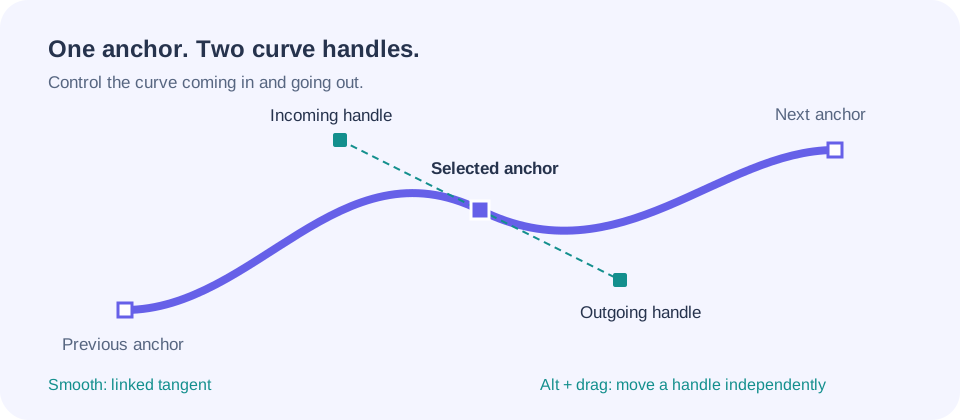
An anchor is a point on the path. A handle is a control point away from the path that changes how the curve approaches or leaves an anchor. In the editor, anchors are white or blue squares and the selected anchor’s handles are teal.
Select a different anchor to see its handles. Hidden or collapsed handles do not mean that the next anchor owns the selected point’s curve.
Turn a sharp corner into a smooth curve
- Click the corner you want to round, or choose it from Selected point in the right panel.
- Click Curve point. For an interior point, the editor creates incoming and outgoing handles attached to that anchor.
- Drag a teal handle to change the curve. Longer handles create a broader bend; shorter handles keep the bend closer to the anchor.
- Drag the opposite handle to adjust the other side. Smooth handles stay on a common tangent line while retaining their individual lengths.
- Hold Alt while dragging a handle to move it independently and create a sharp change in direction.
For a closed path, the first point also has an incoming segment from the last point. For an open path’s first or last point, only one segment exists, so only one adjoining handle is available.
Choose Corner point to collapse that anchor’s handles and restore a sharp join. This changes the selected point’s controls while preserving controls owned by neighboring anchors.
Move, add, or delete SVG nodes
- Move: drag a white or blue anchor. Use Canvas X and Canvas Y for a specific position.
- Nudge: with the canvas focused, arrow keys move the selected node by 1 canvas unit. Hold Shift for 10.
- Add point: select a point and click Add point to split the adjoining segment. Splitting a curve preserves its shape before you move the new point.
- Delete point: use the button or Delete/Backspace while Anchor mode is active. The path must retain at least two points when open, or three when closed.
Use snapping to line up a node with other artwork. Hold Alt to bypass snapping when you need a small free adjustment.
Finish editing and save the result
Choose Done or press Escape to return to Select. Check the shape at the size where it will be used: a curve that looks smooth at high zoom can still make an icon too heavy at 24 pixels. Export SVG to retain editable vector paths, and keep a downloaded copy alongside your local draft.
Troubleshoot node editing
Why does the whole illustration move instead of one point?
You may still be in Select mode, or the artwork may be grouped. Ungroup until you can select a path, then enter Anchor mode.
Why can I see only one handle?
Open endpoints only have one adjoining segment. A handle may also be collapsed into its anchor. Select an interior point and use Curve point to create a smooth pair.
Can I remove nodes automatically?
The current editor lets you add and remove points manually. It does not provide an automatic path simplification command.
Can I edit a PNG with the Anchor tool?
A PNG contains pixels rather than editable path nodes. First trace it with the image vectorizer, which uses PRO credits, then import the resulting SVG.
For a new outline, follow the Pen tool tutorial. For color work, see SVG gradients.
Make it yours.
Keep this guide open and give it a try.