How to Merge SVG Files
Combine multiple SVG icons, logos, or illustrations into one clean, scalable vector file for free in your browser using the SVG.design editor.
Need to combine several SVG icons, logos, or illustrations into one clean vector file? You can merge SVG files for free in your browser with the SVG.design online editor — no software to install and no sign-up required. This guide walks you through the whole process step by step.
What does merging SVG files mean?
Merging SVGs means placing the contents of two or more .svg files onto a single canvas and exporting them as one combined vector file. This is useful when you want to build an icon set, assemble a logo lockup, or arrange multiple shapes into a single graphic while keeping everything fully editable and scalable.
How to merge SVG files in 5 steps
The fastest way to merge vector files is with the free SVG.design editor. Here is the full workflow.
Step 1: Open the SVG editor
Go to the SVG editor. It opens a full-screen canvas where you can import, arrange, and export vector graphics directly in your browser.
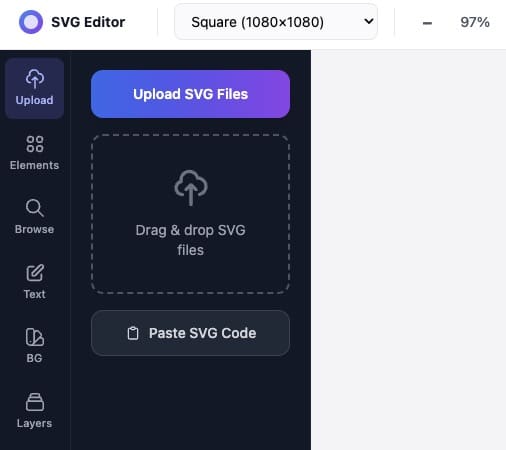
Step 2: Import your first SVG file
Use the import button (or drag and drop) to bring your first .svg file onto the canvas. The shapes, paths, and text load as editable objects rather than a flat image.
Step 3: Import the remaining SVG files
Repeat the import for every other SVG you want to combine. Each file is added on top of the canvas, so all of your graphics now live in the same document.
Step 4: Arrange and align the objects
Move, scale, rotate, and align each imported graphic until the layout looks right. You can group related shapes together, reorder them front to back, and adjust spacing so the merged result is exactly what you need.
Tip: Before exporting, set the canvas size to fit your combined artwork so there is no extra empty space around the final file.
Step 5: Export the merged SVG
When you are happy with the layout, export the canvas as a single SVG file. The download contains every imported graphic merged into one clean, scalable vector document.
Tips for cleaner merged SVGs
Frequently asked questions
Can I merge SVG files without installing software?
Yes. The SVG.design editor runs entirely in your browser, so you can merge vector files on any device without downloading an application.
Will merging keep my SVGs editable?
Yes. Imported files stay as editable vector objects, so you can keep adjusting paths, colors, and positions after combining them and before you export.
Is merging SVG files free?
Yes. Creating and exporting a merged SVG in the editor is free.