How to Draw SVG Paths with the Pen Tool
Draw an open line or a filled custom shape with click-and-drag Pen controls, then refine and export the vector.
In this guide 6 sections
To draw a custom SVG shape, open the SVG editor, choose Pen, and place points on the canvas. Click for a sharp corner or drag for a smooth curve. Finish an open path for line artwork, or close the path for a filled shape. You can refine its points afterward with the Anchor tool.
This tutorial builds a simple leaf, then explains how to draw an open line. Drawing and exporting are free and do not require an account.
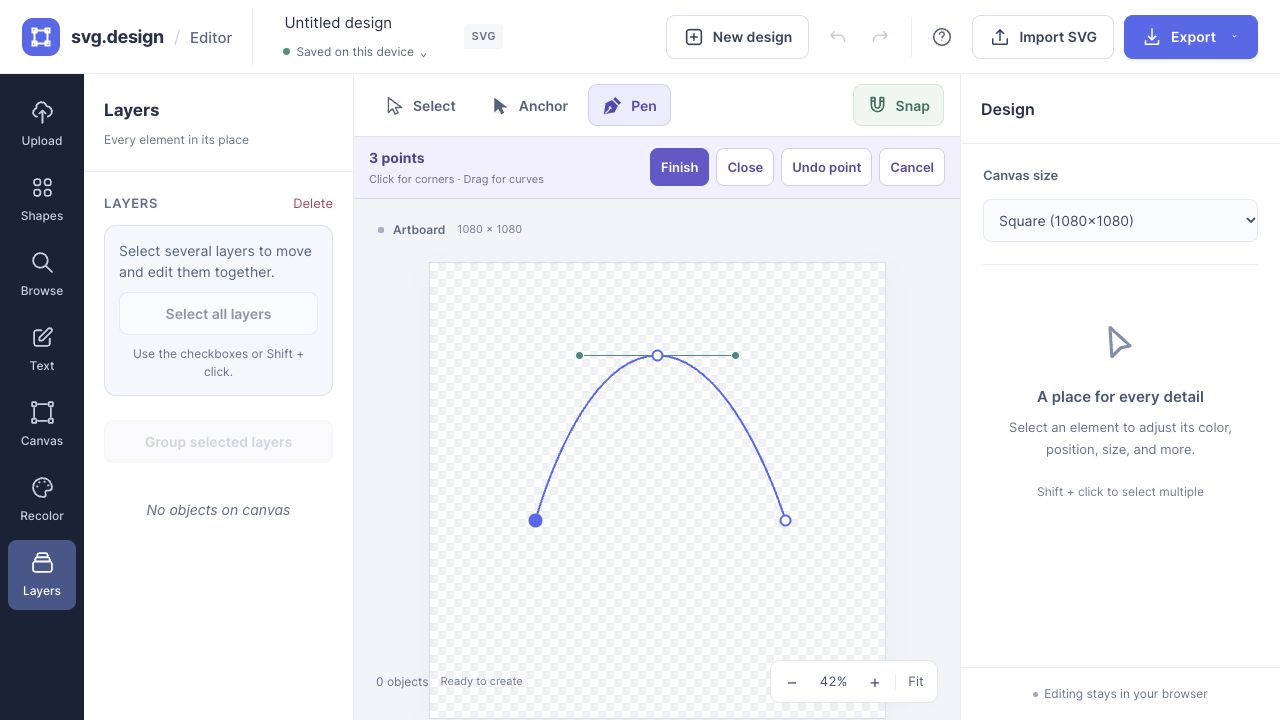
Choose Pen, Anchor, or Select
The toolbar above the canvas runs left to right: Select → Anchor → Pen. Select moves and resizes whole objects. Anchor changes an existing shape’s points. Pen draws a new path.
- V: Select.
- A or N: Anchor.
- P: Pen.
- S: toggle snapping.
These letter shortcuts apply while working on the canvas. They do not switch tools while you type in a text object or input field.
Draw a curved leaf step by step
- Start a design. Open the editor. If an older draft appears, choose Start fresh, or use New design in the top bar. Your previous design stays in Local drafts when saving is available.
- Choose Pen. Click the nib icon or press P.
- Place the bottom tip. Click near the bottom of the artboard. A click creates a corner without curve handles.
- Curve the right edge. Move up and right, then press and drag upward. Dragging creates a pair of tangent handles at that point; their direction and length control the curve.
- Place the top tip. Click above the first point, near the top of the leaf.
- Curve the left edge. Move down and left, then press and drag downward.
- Close the shape. Click the first point, choose Close, or press Shift + Enter. A closed path needs at least three points.
- Style the leaf. Use Select to select the finished object. Set its fill and stroke in the right panel. Try a green linear gradient for a lighter tip and darker base.
The first attempt does not need to be perfect. Switch to Anchor editing to reposition the points or adjust the curves.
Draw an open SVG line instead
For a route, connector, or decorative stroke, place at least two points and choose Finish, or press Enter. The result starts with no fill and a visible stroke. Change the stroke color, width, and dash style in the inspector.
Closing a path adds the connection from the last point back to the first. Leave it open when that extra connection would cross your artwork.
Correct a point while drawing
- Undo point removes the most recently placed point. While Pen is drawing, Backspace, Delete, or Ctrl/Cmd + Z does the same.
- Escape or Cancel discards the unfinished path. Use Finish or Close when you want to keep it.
- Alt temporarily bypasses snapping while placing a point.
- After finishing, use the normal Undo button to undo a completed drawing operation.
Finish or close your path before taking a break, then check the save status. The drawing preview is not a substitute for a saved, finished path or an exported file.
Refine and export your drawing
Choose Anchor and select a point. Curve point adds handles to that point; Corner point removes its handles. For an interior point, the incoming and outgoing handles belong to the same anchor. An endpoint of an open path only has one adjoining segment.
Choose Export → SVG to keep vector paths. PNG and JPG exports turn the drawing into pixels. Keep an SVG copy if you plan to reshape the path later.
Questions about drawing SVG paths
Is Pen a freehand brush?
Pen draws a path from placed anchors and Bézier curves. It is useful for deliberate outlines and custom shapes; it does not trace every movement of a freehand brush.
Why does my path have no fill?
You may have finished it as an open path. For a filled leaf, badge, or silhouette, close the path. Also check that Fill is enabled in the inspector.
Can I draw over an imported SVG?
Yes. Import the SVG, then use Pen to add a separate path on the same artboard. This adds artwork rather than automatically tracing or joining the original paths.
Next, learn to edit nodes and curve handles, align points with snapping, or group related elements.
Make it yours.
Keep this guide open and give it a try.